
Svenska English Download PDF
User manual
A short guide for the person who sets up Delatool. Questions go to info@delatool.com.
1. Getting started
Delatool runs in the browser. There is no app. You do not create the account yourself. When you are signed out: open User → Order demo package. On the home page you can also click Order free demo package. We send email, a temporary password and a customer number.
Questions go to info@delatool.com.
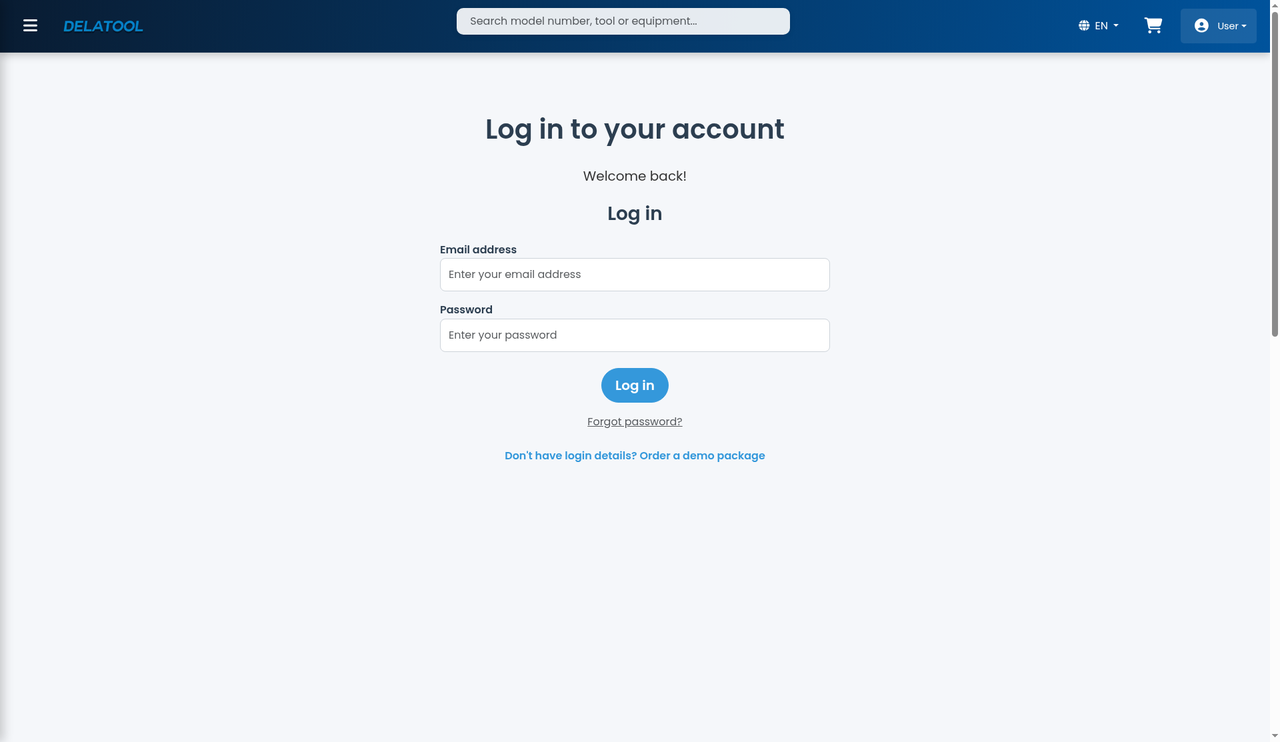
Sign in
- Open User and choose Sign In.
- Enter Email address and Password.
- Click Log in.
- The first time, Choose a new password opens. Type a new password twice (at least 7 characters, not the temporary one) and click Save password.
Sign out with Sign Out.
Forgot the password: on the sign-in page click Forgot password?, enter your email and follow the message. The link is valid for one hour.
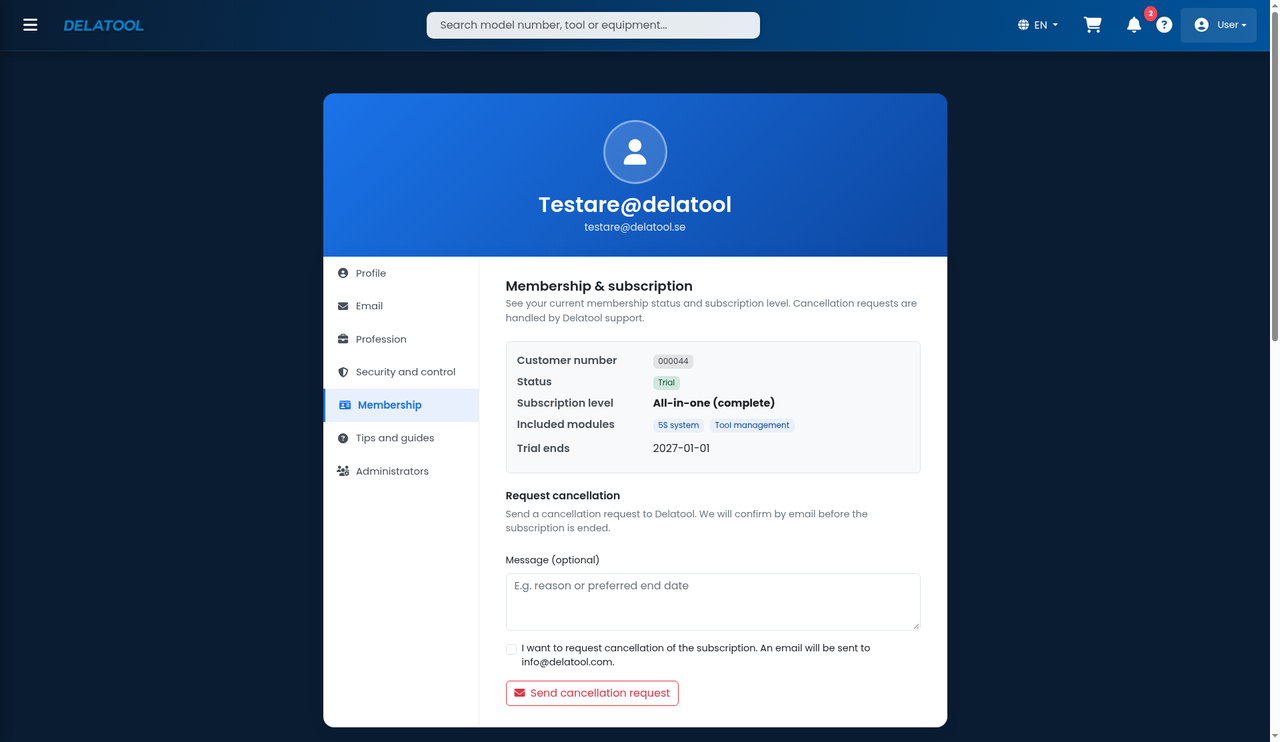
My page
Open My Profile. The tabs are Profile, Email, Profession, Security and control, Membership, Tips and guides and (for the account owner) Administrators.
The three you need first:
- Membership shows customer number, status and subscription level (for example Tool management, 5S system or All-in-one). If a menu item is missing, the trial has ended or the level is wrong.
- Security and control is the PIN and the user controls. The PIN is four digits. Type them in New PIN code and click Update PIN.
- Administrators lets the account owner create more logins with Create administrator. They share the customer number and data.
Under Tips and guides you can show the intro guides again. Order demo package in the User menu only shows when you are signed out.
2. The 8 user controls
On My page → Security and control you choose what a user who scans a QR code may do without signing in. Logged-in administrators are never blocked by the PIN.
Set a PIN first. Without a PIN the controls cannot be turned on.
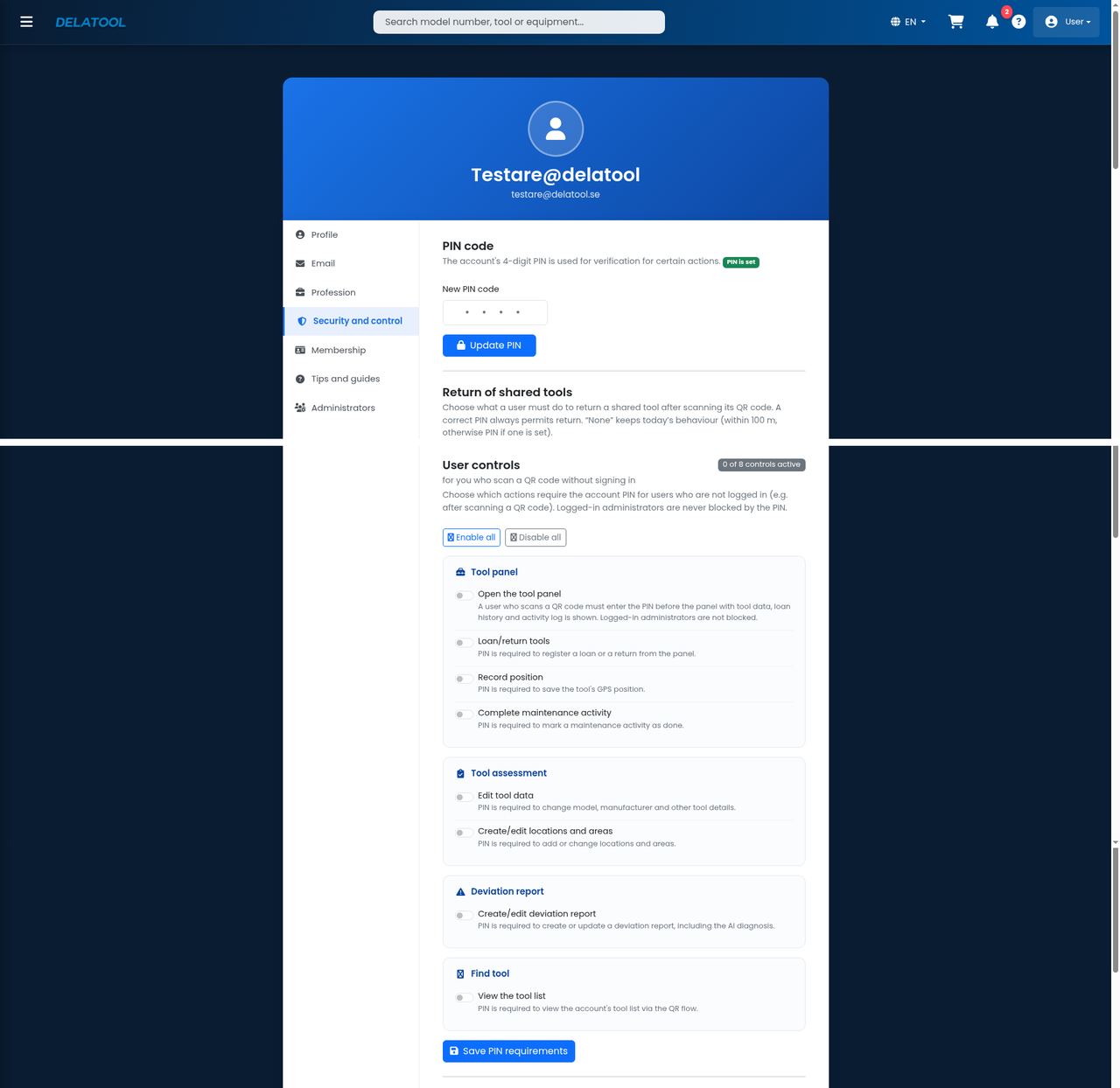
Turn controls on or off
- Open My Profile and the Security and control tab.
- Set a New PIN code (four digits) and click Update PIN.
- Under User controls, turn on the switches for the actions that should require the PIN. The counter shows for example 0 of 8 controls active.
- Click Save PIN requirements.
Enable all and Disable all sit above the list. Five wrong PINs lock the box for five minutes. Do not write the PIN on the label.
Switch off = no PIN for that action. Switch on = PIN required.
The eight controls
Tool panel
- Open the tool panel — PIN before the panel with tool data, loan history and activity log is shown.
- Loan/return tools — PIN to register a loan or a return from the panel.
- Record position — PIN to save the tool’s GPS position.
- Complete maintenance activity — PIN to mark a maintenance activity as done.
Tool assessment
- Edit tool data — PIN to change model, manufacturer and other details.
- Create/edit locations and areas — PIN to add or change locations and areas.
Deviation report
- Create/edit deviation report — PIN to create or update a deviation report, including the AI diagnosis.
Find tool
- View the tool list — PIN to view the account’s tool list via the QR flow.
The same tab has extra settings that are not part of the eight: Return of shared tools, Return of non-shared tools, PIN when scanning QR, secondary lending and loan reminders. Those are covered in the loan and return chapter.
3. Tools and QR labels
The chain is area → location → tool → QR code. An area is a hall. A location is a cabinet, a shelf or a service van. The tool is the model. The QR code is the individual item.
Open Tool management system in the side menu.
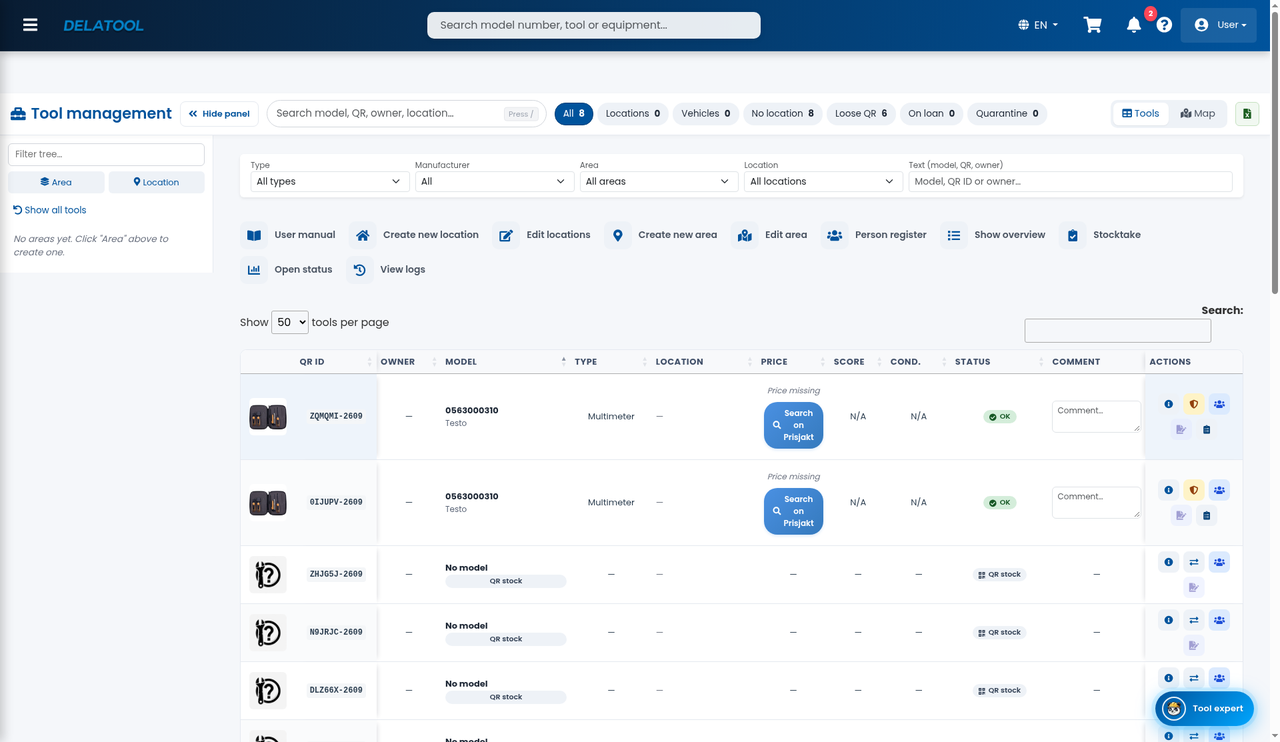
Create area and location
Do this once, preferably on a computer.
- Click Create new area, fill in Area name and click Create.
- Click Create new location.
- Choose an area, fill in Location name and choose Fixed location or Service vehicle.
- For a service vehicle, fill in Registration number.
- Click Create location.
A location always needs an area.
Labels and linking
Labels in the demo package are already tied to your customer number. Order more with Order extra QR codes on the home page (when you are signed in).
Stick the label on a flat surface that does not wear. Do not put it on the battery.
On a phone:
- Scan the label with the camera.
- Search for model, article number or manufacturer.
- Tap the right tool and Yes, link tool.
- If the model is missing: Create tool and link QR code.
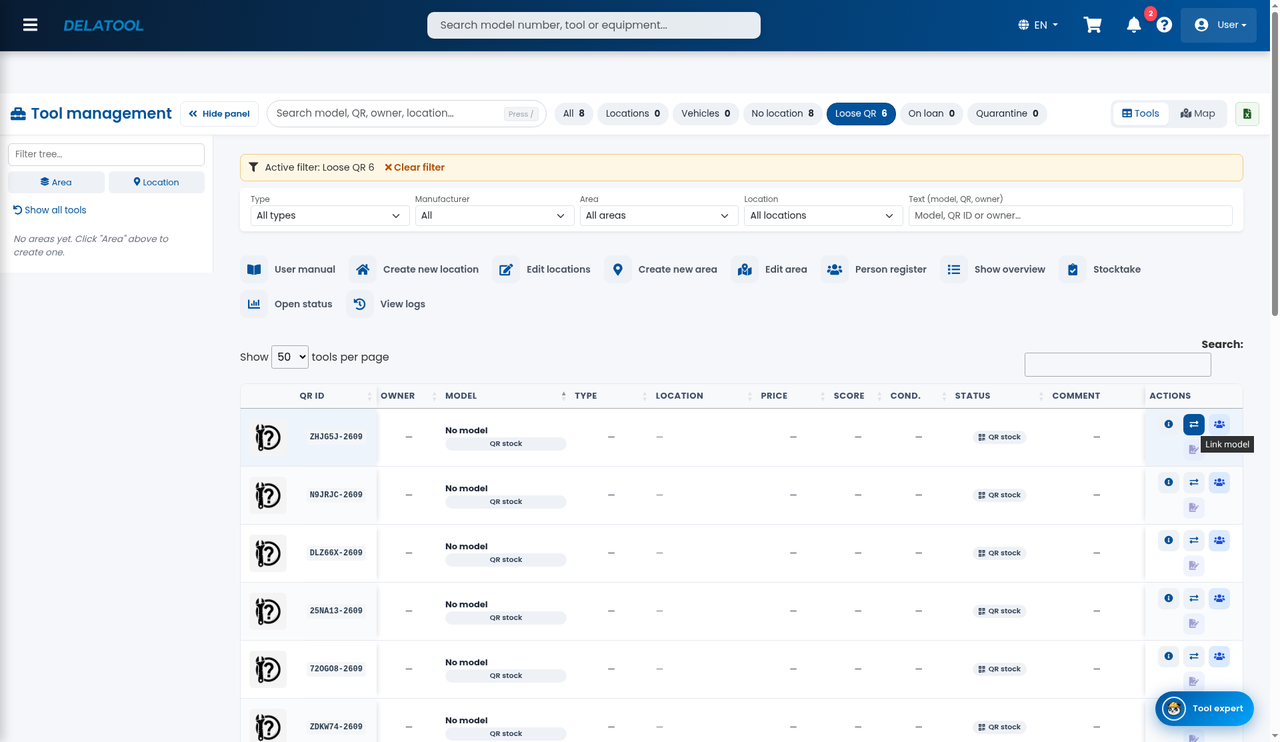
On a computer, when the row shows QR stock:
- Open Tool management system and the Loose QR filter.
- Click the Link model icon (tooltip only, no button label), search and confirm.
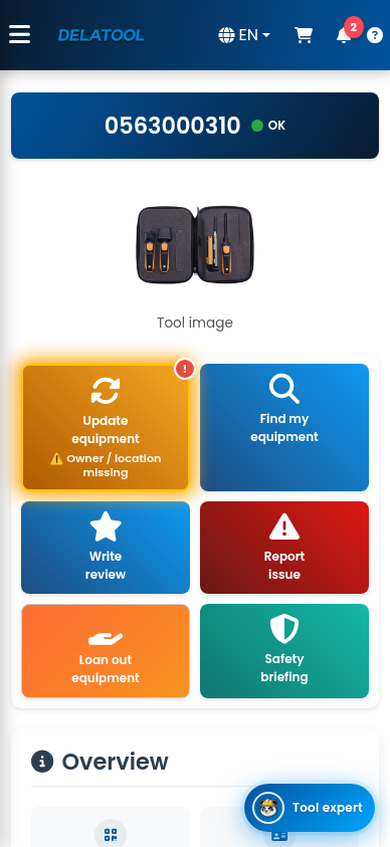
After the scan, the tool panel opens. It includes Find my equipment, Loan out equipment, Report issue, Safety briefing and Write review.
Stocktake
A QR scan with a phone (the camera, not a link inside the site) counts as an inventory check. The time shows under Stocktake in Tool management system, for example Today in the Europe/Stockholm time zone.
- Scan the label in the field.
- Open Stocktake when you want to see which labels were scanned recently.
4. Loan and return
Receipt is who is responsible for the tool. Loan is who has it temporarily. Do not mix them up.
A shared tool can be signed out by anyone who scans the QR code. Mark it with Mark as shared tool in Tool management.
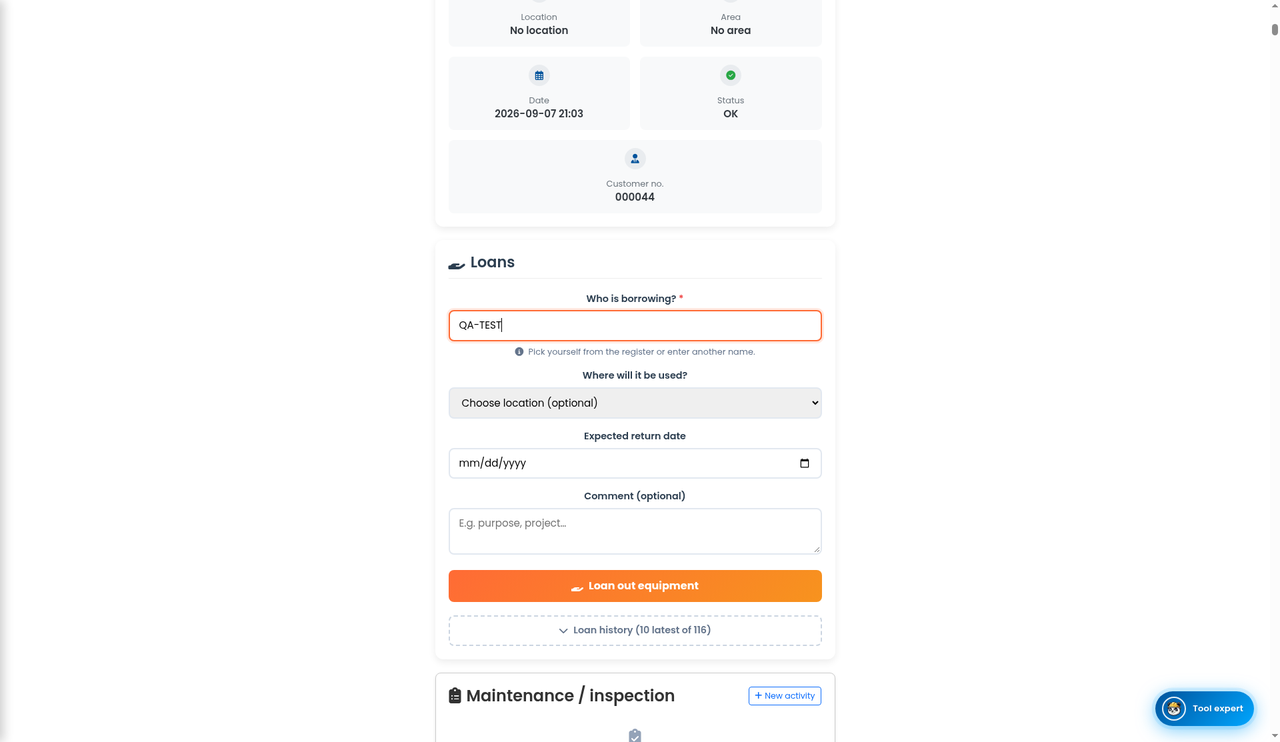
Loan out
The form is already on the tool panel. You do not open another tab.
- Scan the QR code.
- Tap Loan out equipment.
- Fill in Who is borrowing? (search the person register or type a name).
- Choose Where will it be used? if you want.
- Set Expected return date.
- Click Loan out equipment.
Status becomes On loan.
Return
- Scan the code.
- Choose Yes, it has been returned.
- Click Mark as returned.
Always set a return date, otherwise the loan is harder to follow up.
On My page you can turn on Email me when a loan is overdue.
Shared tools and GPS
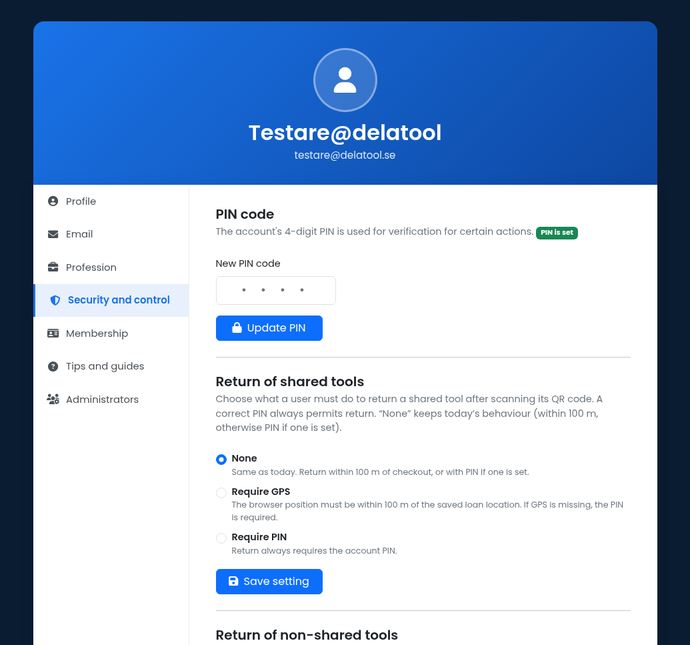
On My page → Security and control under Return of shared tools, choose what a user must do after scanning:
- None — same as today. Return within 100 m of checkout, or with PIN if one is set.
- Require GPS — the browser position must be within 100 m of the saved loan location. If GPS is missing, the PIN is required.
- Require PIN — return always requires the account PIN.
GPS checks on return apply only to shared tools. For non-shared tools, Require PIN on return is on the same tab.
Record position (one of the eight controls) decides whether PIN is needed to save GPS at scan time. The map in Tool management shows tools with saved GPS. On a phone the browser needs location permission.
5. Activities and the activity calendar
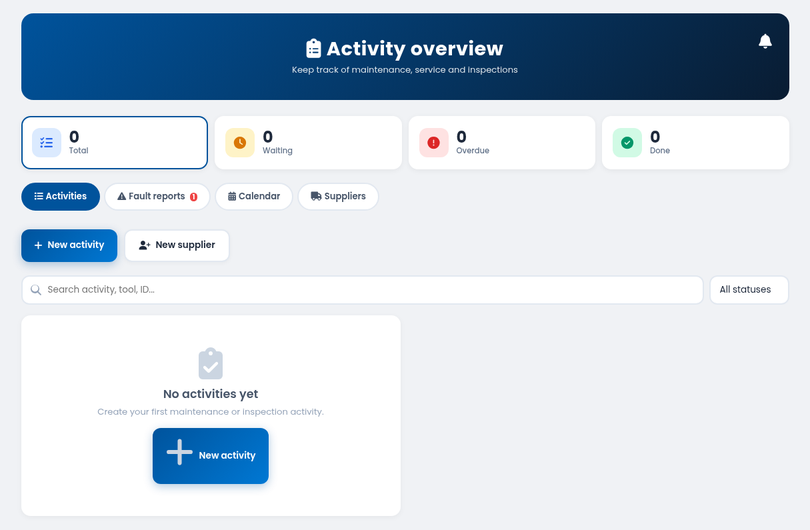
The side menu says Activity Centre. The page that opens is titled Activity overview. That is maintenance, service and inspection. The cards Total, Waiting, Overdue and Done show the status. The calendar is on the same page.
Create an activity
- Open Activity Centre in the menu (the Activity overview page).
- Click New activity.
- Under Tool, search the dropdown (Search model, ID or QR). Two tools with the same model are told apart by the QR code in the list.
- Choose Inspection, Calibration or Service, or type your own type.
- Set Next date (month and year).
- Under Interval choose One-off, 6 months, 12 months or 24 months.
- Click Create.
When the job is done, click Done on the card in the overview (not in the calendar). An interval creates the next occasion. One-off is only marked done.
About 30 days before the next date a reminder is sent. After the date the system reminds every week. Tools in quarantine do not get reminders.
The calendar
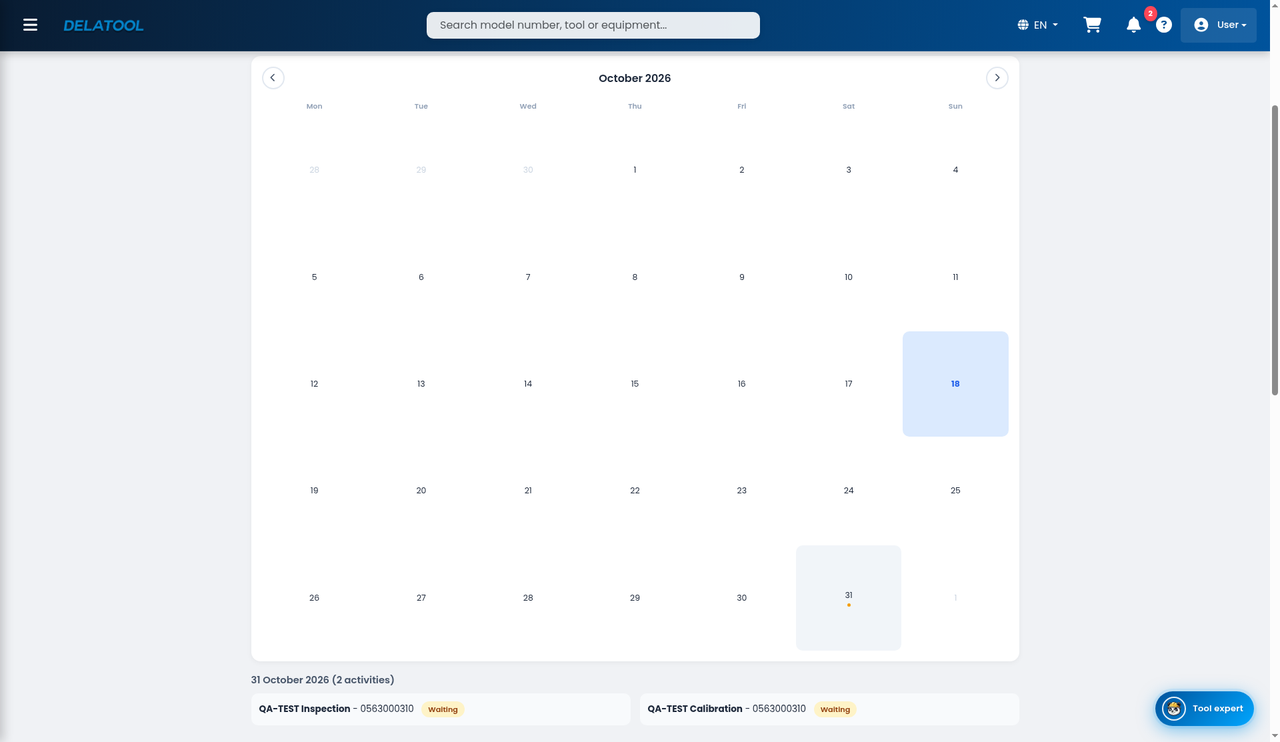
- Open the calendar on the same page.
- Click a day.
- The list below the calendar shows type, model and status for that day. There is no Done button there.
From the tool panel you can also create a New activity for that tool. The Complete maintenance activity control decides whether a user who scans the QR needs the PIN to mark it done in the overview.
6. Quarantine
Quarantine removes the tool from the normal lists. History stays. It is not the same as deleting. Delete cannot be undone — use it only when the row should disappear for good.
Quarantine
- Open Tool management.
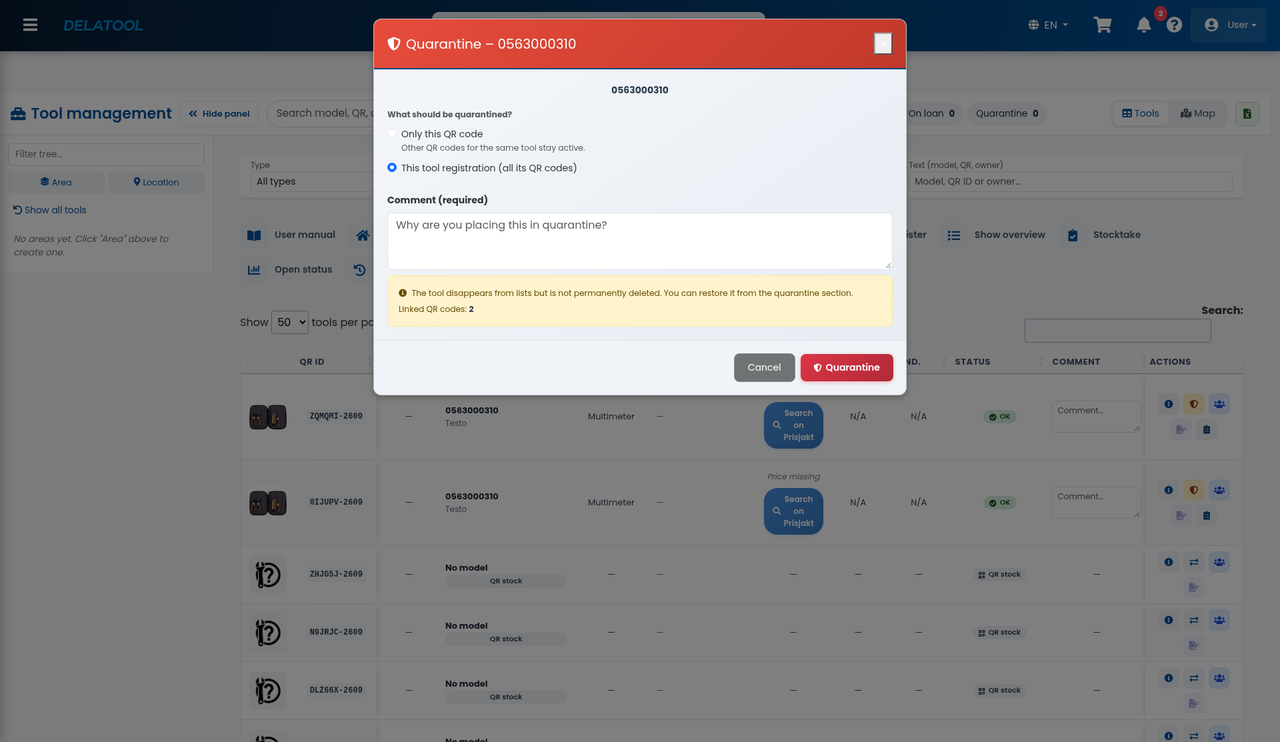
- Click the shield icon on the row.
- Choose what to quarantine:
- Only this QR code — other QR codes for the same tool stay active.
- This tool registration (all its QR codes) — the whole registration leaves the list.
- Write a Comment (required).
- Click Quarantine.
Restore
- Open the Quarantine quick filter or the Quarantine section below the table.
- Click Restore to bring the item back.
Tools in quarantine do not get activity reminders. A quarantined QR cannot be used in the field until it is restored.
7. 5S
5S needs the 5S system or All-in-one subscription, or an active trial. Otherwise skip this chapter.
5S in Delatool has four levels: Sort, Set in order, Shine and Standardise. Start with one area, not the whole site.
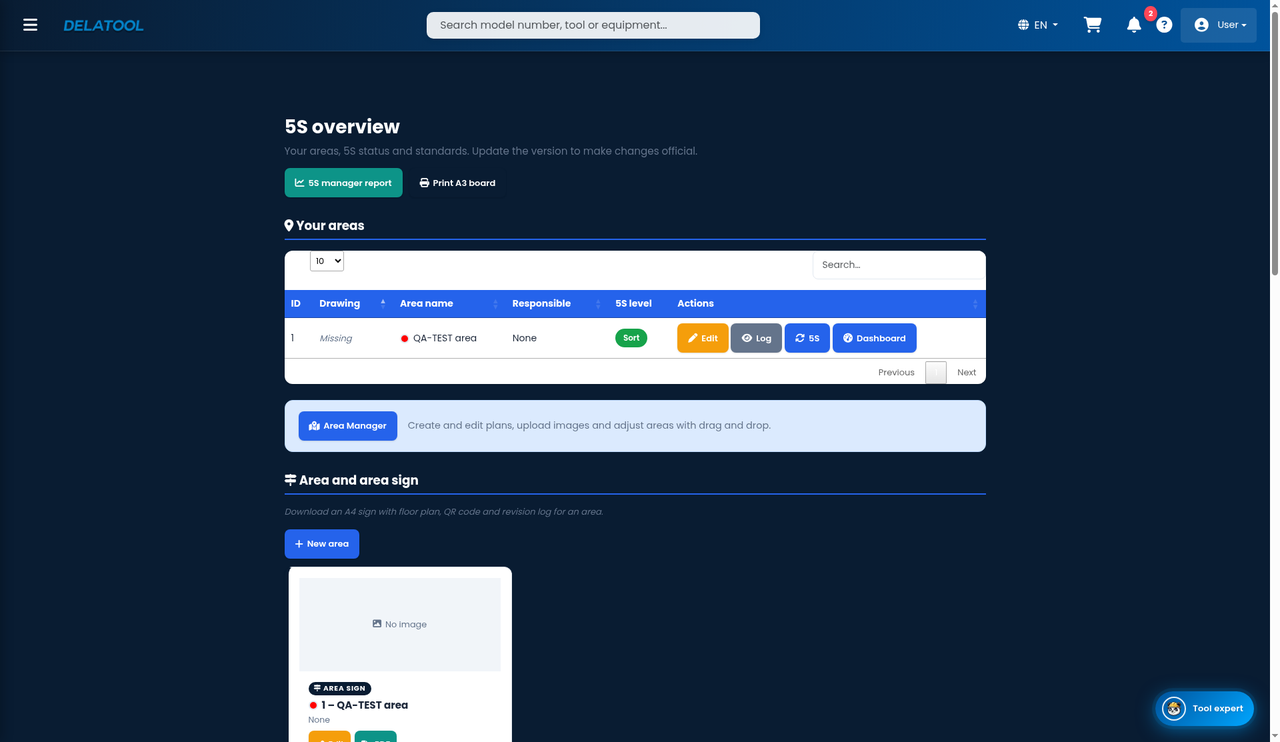
The side menu only has 5S System. It goes straight to 5S overview. There is no sub-item.
Draw areas
- Open 5S System in the side menu (you land on 5S overview).
- On the overview, open the Area Manager card.
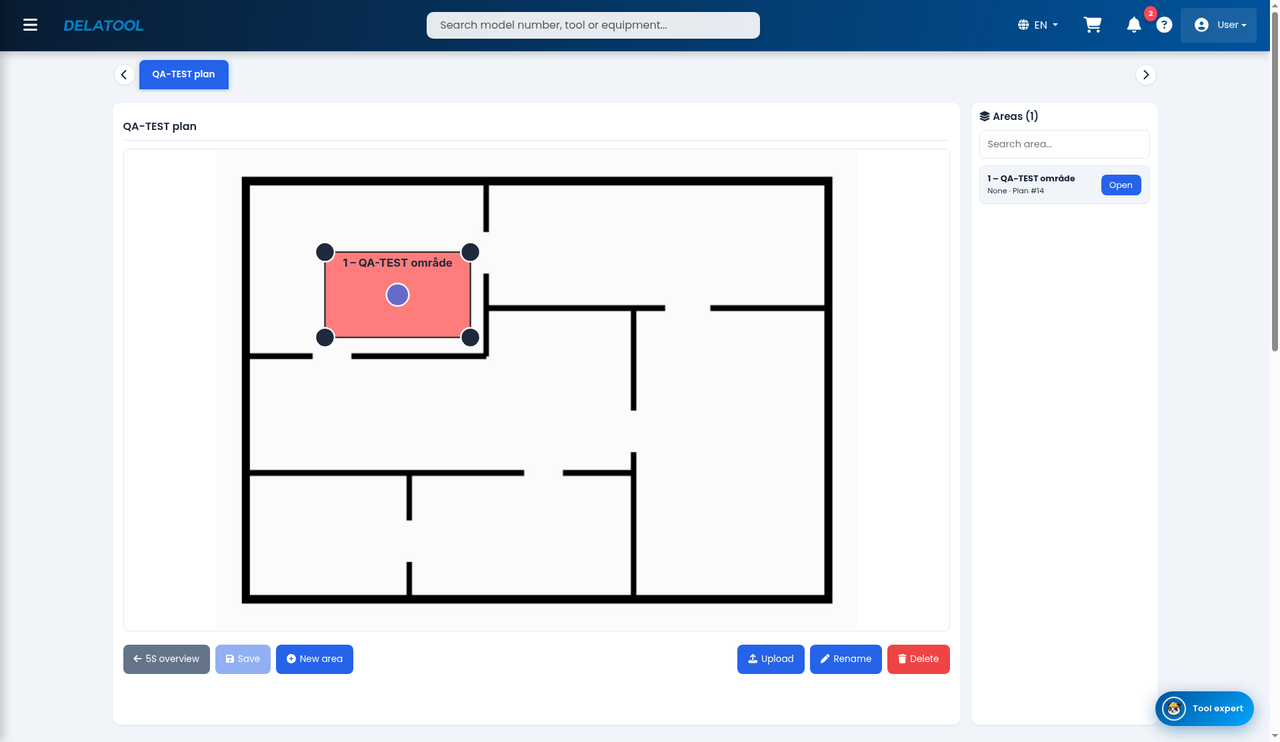
- The first time: click Upload drawing, name it, choose a PNG or JPG and click Upload. If a plan already exists, the toolbar button is Upload.
- Click New area. An area is saved at once with the name NewArea. You do not name the box first.
- In the Areas list click Open. Fill in Name, Responsible and Colour and click Save area info.
- Move and resize the box on the plan. Save on the toolbar only saves the position. It stays grey until you move something.
Clicking Save opens Save all changes?:
- Yes, save — writes the positions to the server and redraws the plan.
- No — closes the dialog without saving. The positions stay unsaved.
- Cancel — closes the dialog without saving. You stay on the same plan.
If you leave without Save, the position change is lost. Name and colour saved with Save area info stay.
Audit
- On 5S overview click 5S on the area row.
- Answer the questions. A failing answer needs a comment.
- Click Update 5S.
- Open Dashboard on the same row and read the analysis.
Do not answer yes just to be kind. Then the gaps never show.
On the overview you also find Area sign (A4 with plan, QR and log) and location signs once areas exist. 5S manager report shows trends per period.
Delatool · info@delatool.com
